User Guide
Get started with FishMux — your visual Docker & tmux cockpit — in a few steps.
FishMux connects to your machines over a secure SSH transport, then turns what's running on them into something you can see and touch: Docker containers and Compose stacks, tmux sessions, quick commands, and Wake-on-LAN. This guide walks through the basics.
Getting Started
Add a Server
Tap the + button on the home screen. Enter the hostname (e.g. 192.168.1.10 or myserver.com), port (default 22), username and password.
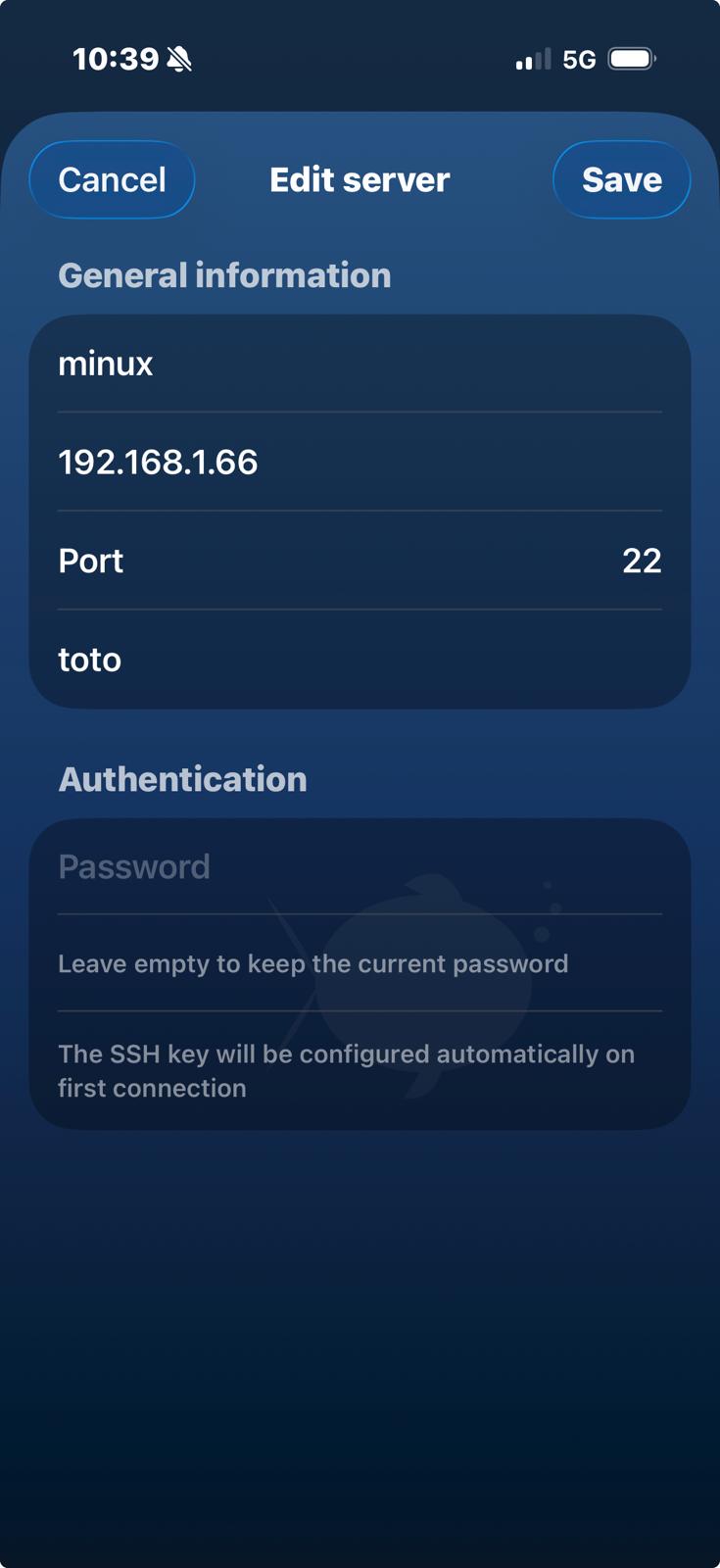 Add server form — hostname, port, username, password
Connect
Tap the host in the list. Hosts on your local network are highlighted in cyan. FishMux opens a secure SSH connection, then surfaces what's running: your Docker containers, your tmux sessions, and a "Direct Shell" if you just want a plain terminal.
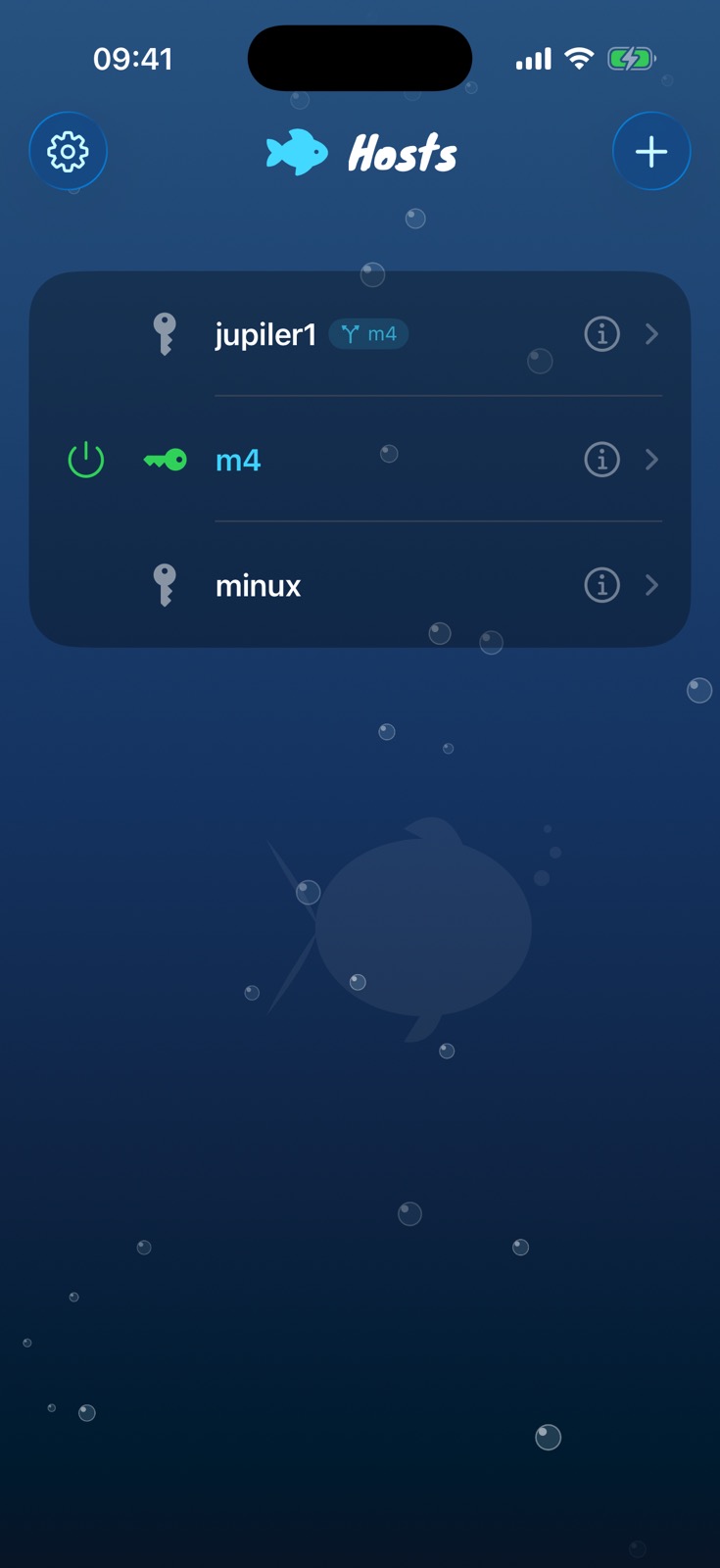 Server list
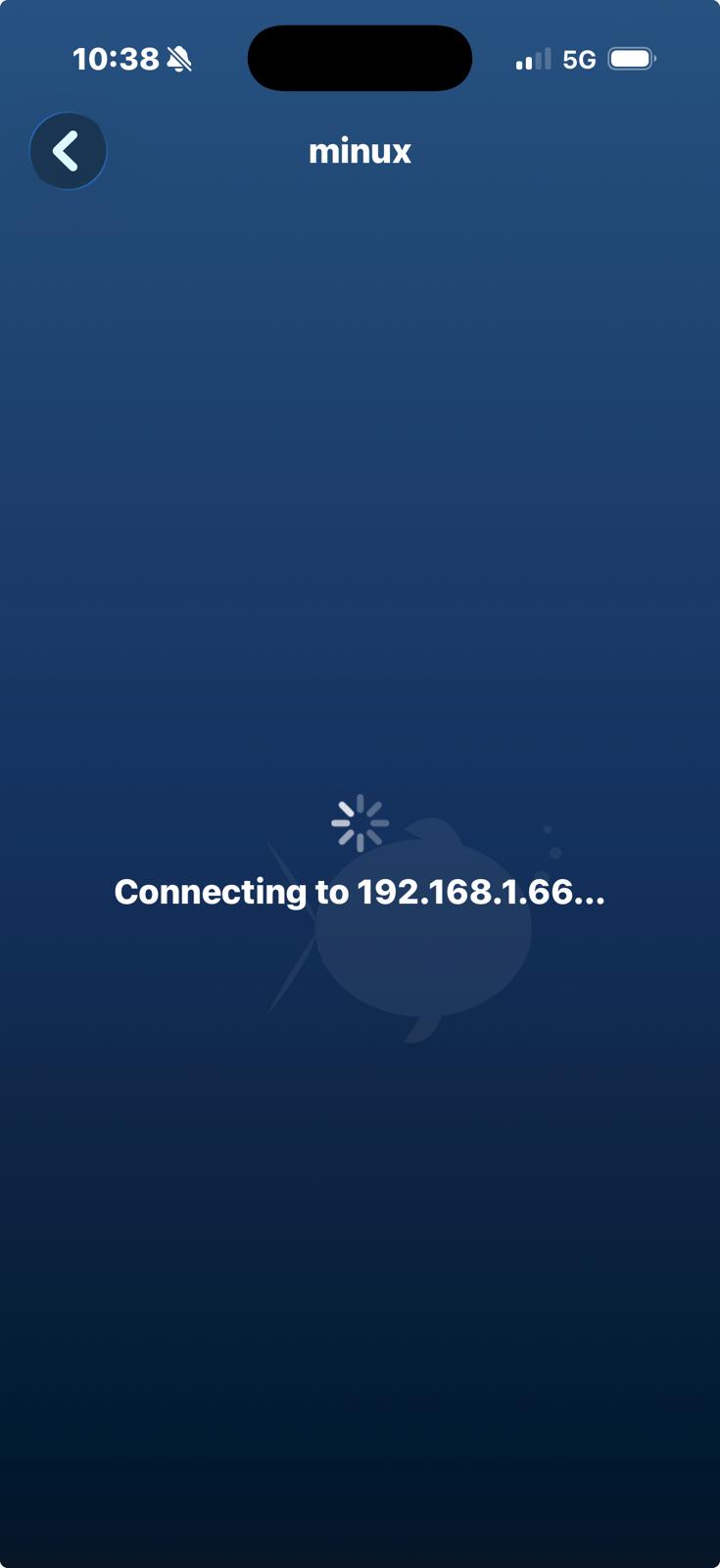 Connecting
Use the Terminal
Type commands using the iOS keyboard. The accessory bar above the keyboard provides special keys: Ctrl, Alt, Tab, Esc, arrows, Copy/Paste, |, and more. Tap F# to access function keys (F1–F12) and navigation keys (Home, End, PgUp, PgDn).
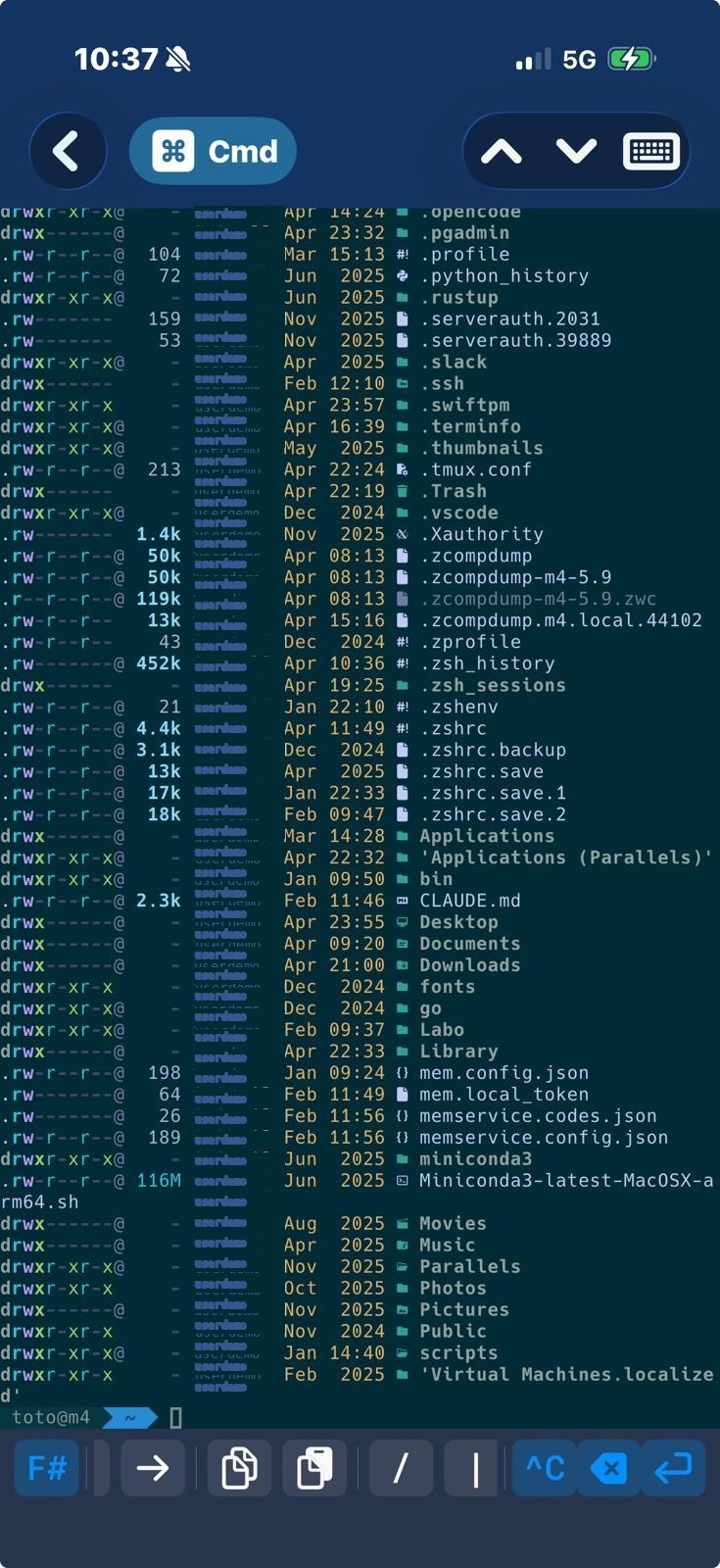 Connected terminal with accessory bar
Tip: On first password login, FishMux generates an Ed25519 key pair and deploys it to your host. Next time you connect, authentication is automatic.
Docker & Compose
If the host runs Docker, FishMux shows your containers and Compose stacks as a visual panel — no typing required:
- See each container's status, image, uptime and live CPU/memory.
- Tap a container to view its logs, open a shell, or start / stop / restart it.
- Containers belonging to the same Compose stack are grouped together.
- Jump straight into a tmux session inside a container for long-running work.
Note: Docker management requires the Docker CLI to be available to your SSH user on the host (e.g. the user is in the docker group).
tmux Sessions
tmux lets you run persistent terminal sessions that survive disconnections. When you tap a server:
- Existing sessions are listed with their name, window count and attachment status.
- Tap a session to attach to it.
- Tap
+to create a new session. - Swipe left on a session to kill it.
- Pull down to refresh the session list.
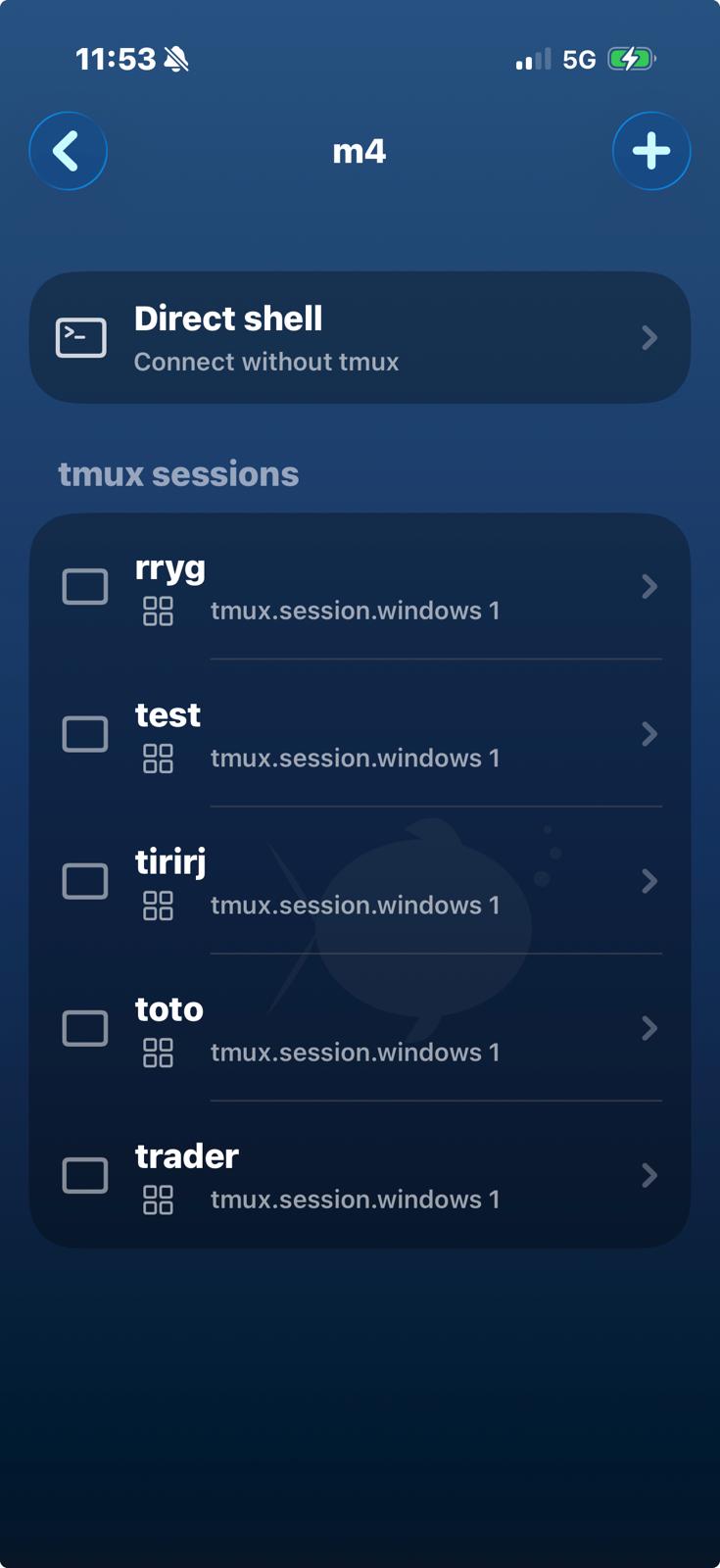 Existing tmux sessions on the server
Note: tmux must be installed on the remote server. If it's not, FishMux shows "tmux not installed" and you can still use Direct Shell.
Quick Commands
The Cmd button in the terminal toolbar opens a list of pre-defined commands you can fire with one tap. Useful for recurring tasks (logs, deploys, restarts).
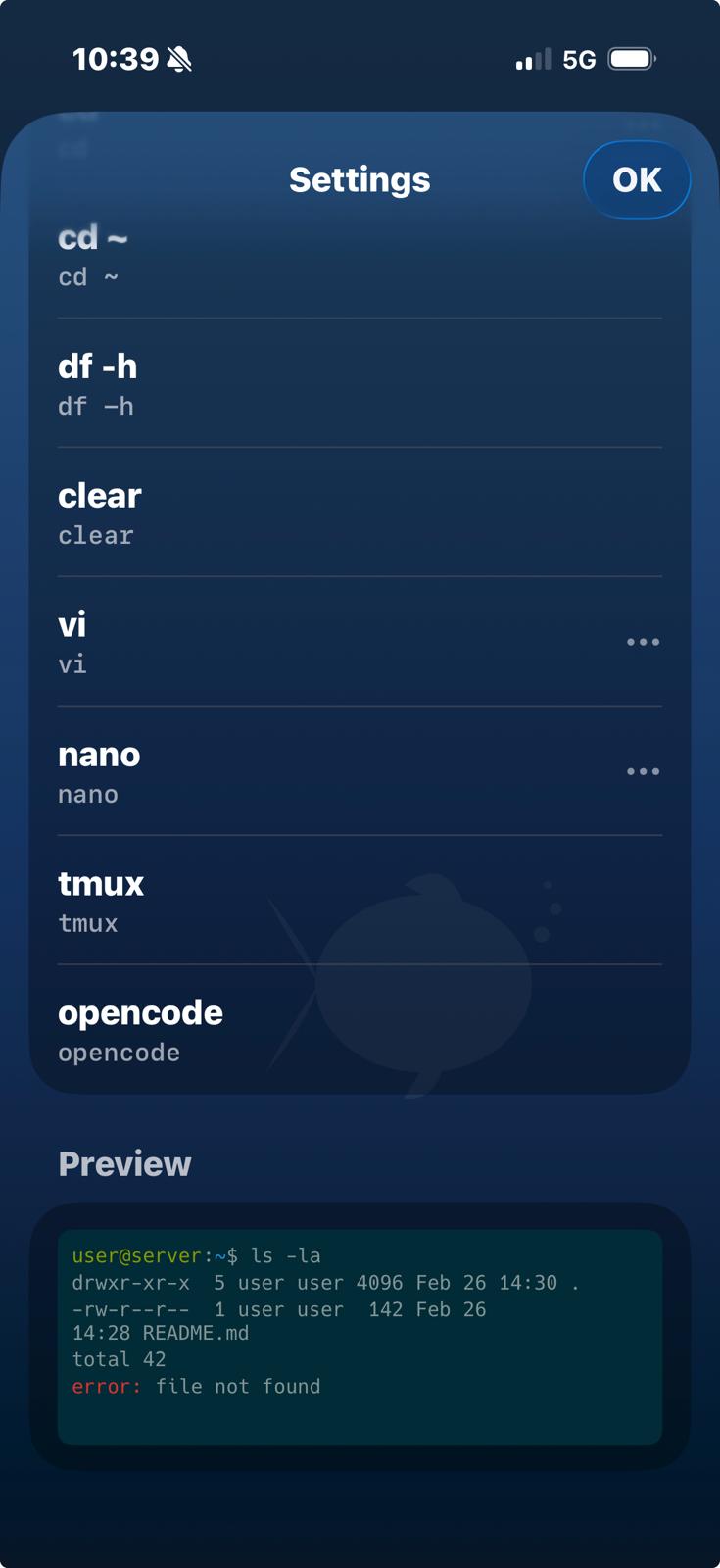 Pick a command
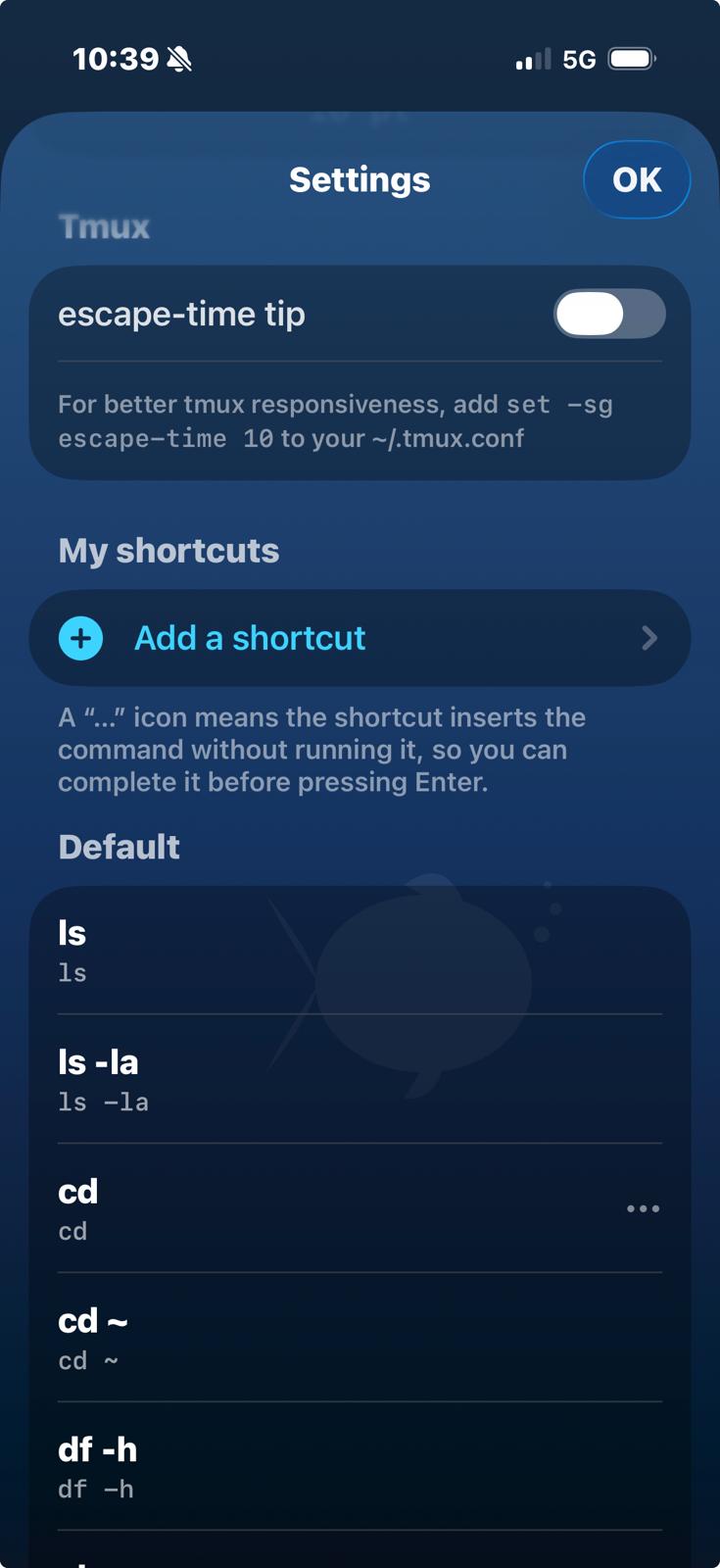 Add a custom command
- Default commands ship with the app (
ls,ls -la,cd,cd ~…) - Add your own from Settings → Commands.
- Toggle Execute immediately to send
\rat the end — off if you want to edit before running.
Wake-on-LAN & power control
FishMux turns your phone into a power switch for your whole fleet: wake the machines that are off, and shut down, reboot or sleep the ones that are on — straight from the host list, no terminal needed.
Waking a machine
- When a host is offline, its row shows a lightning button (⚡). Tap it to send a Wake-on-LAN magic packet and power the machine on.
- On the same network the packet is sent directly. Can't reach the machine (you're away, it's behind NAT)? FishMux routes it through a relay host (a "bounce server") that sits on the target's LAN, then you can connect straight in.
No MAC address to type
- FishMux learns MAC addresses automatically. Each time you connect to a host over SSH, it records that host's MAC and reads its neighbour table to pick up the MACs of other machines on the same LAN.
- So Wake-on-LAN just works for any machine you've reached at least once while it was on — no manual setup. Works with Linux, macOS and Windows hosts.
Powering off
- When a host is online, its row shows a power button (⏻). Tap it for Shut down · Reboot · Sleep, executed over a secure SSH connection. Destructive actions ask for confirmation.
- Shut down is hidden on macOS and on machines whose network card doesn't support Wake-on-LAN, so you never strand a machine you couldn't turn back on remotely. Reboot and Sleep stay available.
Terminal Settings
Tap the gear icon to access settings:
- Theme — choose from 8 themes (Pro, Dracula, Solarized Dark/Light, Material, Ocean, Nord, Tango Dark).
- Font size — adjust from 10pt to 24pt.
- Font — Hack Nerd Font Mono with full glyph support (powerline, icons).
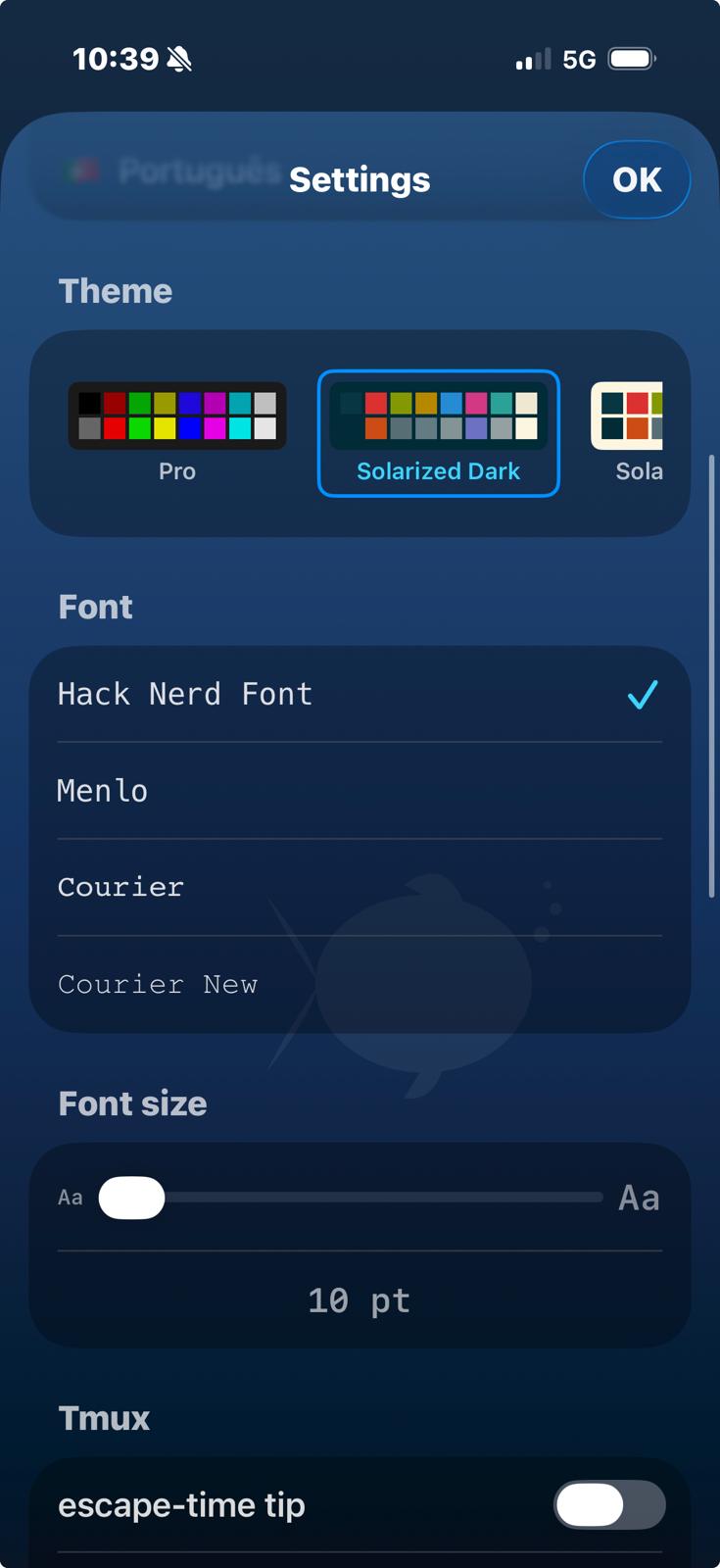 Theme picker in Settings
iPad Mode
On iPad, FishMux uses a split layout: the server list stays in the sidebar while the terminal occupies the main area. Same features as iPhone, more screen real estate.
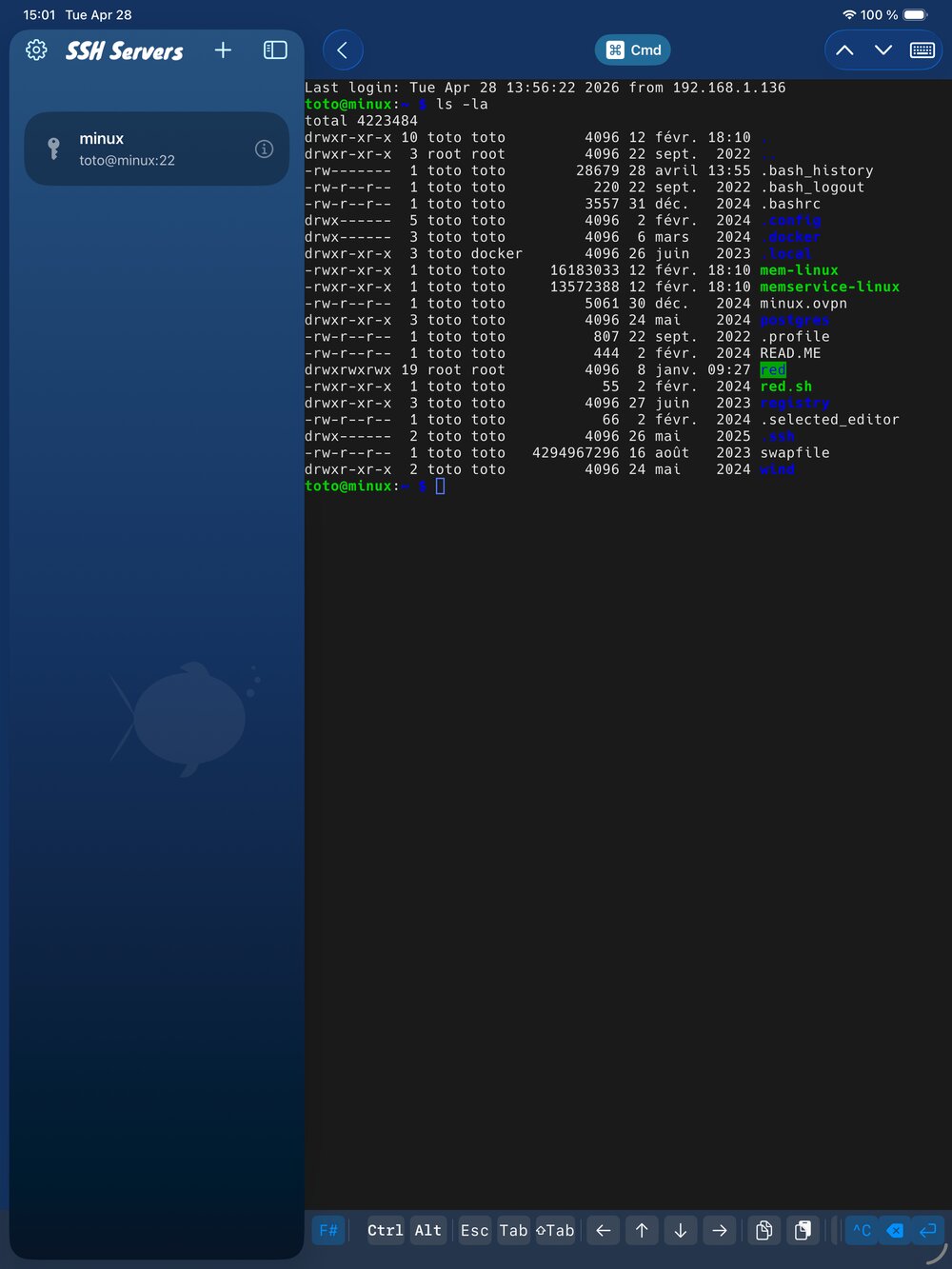 iPad split view: server list + terminal
Combined with tmux, the iPad becomes a real workstation: attach to long-running sessions, AI coding agents (like opencode), build pipelines — everything keeps running on the server, you just reconnect when you want.
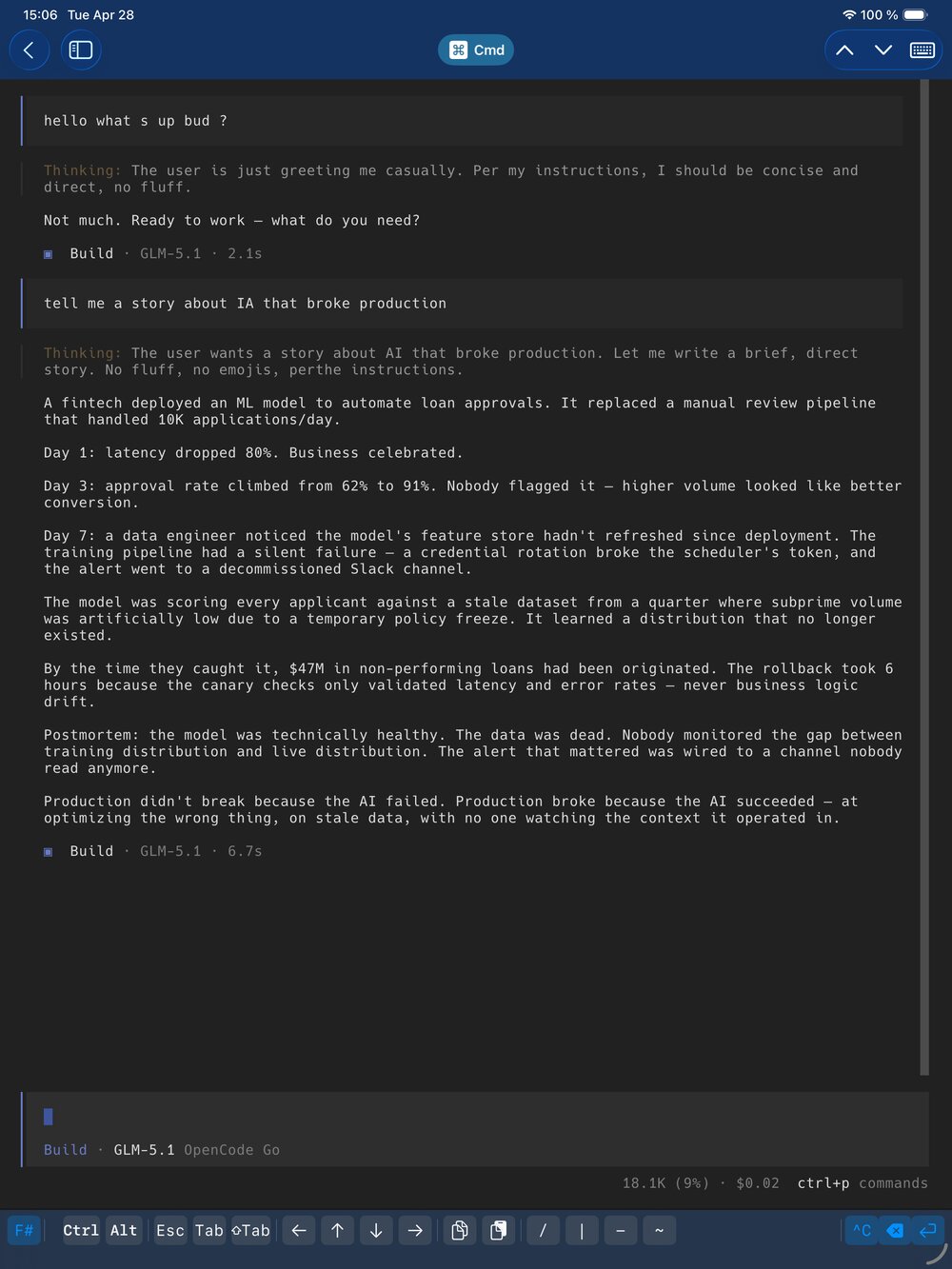 Running
 opencode (AI coding agent) over SSH from iPadCompatibility
FishMux talks to any host running a standard SSH server (OpenSSH). The richer features adapt to the host's operating system, and FishMux simply hides what isn't available rather than failing.
- Linux — full support (Docker, tmux, Wake-on-LAN, power control). Tested, including Raspberry Pi OS. Note: the Pi's onboard network card doesn't support Wake-on-LAN, so wake is unavailable on those.
- macOS — works as an SSH host (tmux, Docker, Reboot and Sleep). Shut down is intentionally hidden, because macOS Wake-on-LAN (via pmset) is unreliable and you might not be able to wake the machine back.
- Windows — supported through OpenSSH; MAC capture and power commands use PowerShell. This path is less tested than Linux/macOS — if you run FishMux against Windows, let us know how it goes.
In short: anything tested so far has been Linux and macOS (Raspberry Pi included). Other systems should work over SSH, but we haven't verified every operating system yet.
Security
- Keychain — passwords and SSH private keys are stored in the iOS Keychain, encrypted by the OS.
- TOFU — server fingerprints are verified on every connection. A warning is shown if the fingerprint changes.
- Ed25519 — keys are generated per-server and auto-deployed. No manual key management needed.
Keyboard & Accessory Bar
The accessory bar above the keyboard has two modes. Tap F# / abc to switch between them.
Main bar
Ctrl— tap once for a single Ctrl combo, double-tap to lock. Type a letter to send Ctrl+letter (Ctrl+C, Ctrl+Z, etc.)Alt— same toggle behavior, sends Alt+key (useful for tmux prefix, readline shortcuts)Esc— escape keyTab/⇧Tab— autocomplete / reverse autocomplete← ↑ ↓ →— arrow keys (combine with Ctrl for word navigation, with Alt for alt-arrow)- Copy / Paste — copy the terminal selection to the iOS clipboard, or paste clipboard content into the terminal. Handy for transferring API keys, tokens or URLs from Safari.
/|-~— commonly used special characters^C— interrupt (SIGINT)⌫— clear input line (Ctrl+U)
Extended bar (F#)
F1–F12— function keysHome/End— jump to start/end of linePgUp/PgDn— scroll or navigate in pagers